User Management
Overview
Freelance - Undisclosed
Productivity Tool
4 weeks
- UX Researcher
- Product Manager
UX/UI Designer
Executive summary
My client, a productivity tool company used by modern scrum teams, identified an issue with the way company administrators are managing the team members on their accounts. In most of companies, team members move between various teams (sometimes, even within other subsidiaries in the same larger organisation), depending on the project that they’re working on. Over four weeks, as the sole UI designer, I worked with the UX researcher and product manager to create a new design that will address some of the gaps identified by the researcher. After making some of these changes, the client got early feedback from our beta users that the new solution made their lives easier.
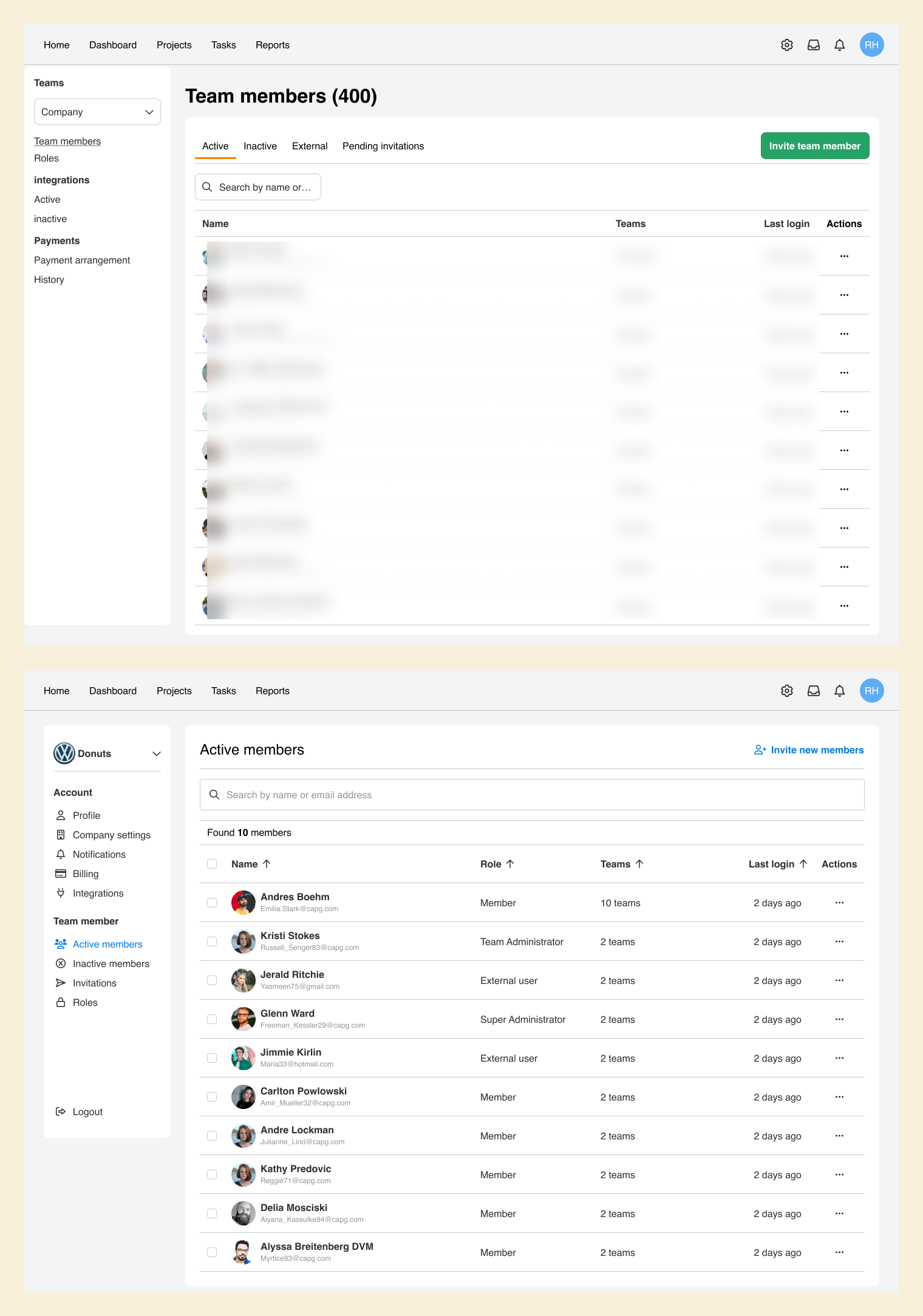
Before & After
Problems
The existing solution had a major flaw that the client wanted to solve: administrators could not easily take actions on multiple users. They weren’t able to filter users by specific criteria, or select multiple to take actions on them. For example, it was impossible to move a group of users from one team to another, without doing them individually. This was a critical feature for large accounts, particularly those where team members often move between teams and somtimes, even across companies.
I’ve about 450 team members using the software split across two companies… I can’t do them all individually.
I don’t care about seeing inactive users, afterall, I’m not paying for their licenses. I rarely even turn on that view. It’s the active users that I care about.
I maintain the active user list every two weeks before we’re billed
(…) Especially with contractors or freelancers we hire, we don’t issue full licenses, only temporary ones. So it’d be nice if I could have this as a ‘view’ instead of ‘inactive’ users.
The product manager prioritized 3 problems to solve:
- Not being able to take actions on multiple users. This was the most critical problem, as it prevented administrators from efficiently managing large accounts.
- Not having saved searches. This would save administrators time and effort, as they would not have to recreate the same search each time.
- Not having helpful error messages. This would make it easier for users to troubleshoot and fix errors, and would reduce the number of support tickets that need to be opened.
Key Changes
Based on the above problems, I made the following UI changes:
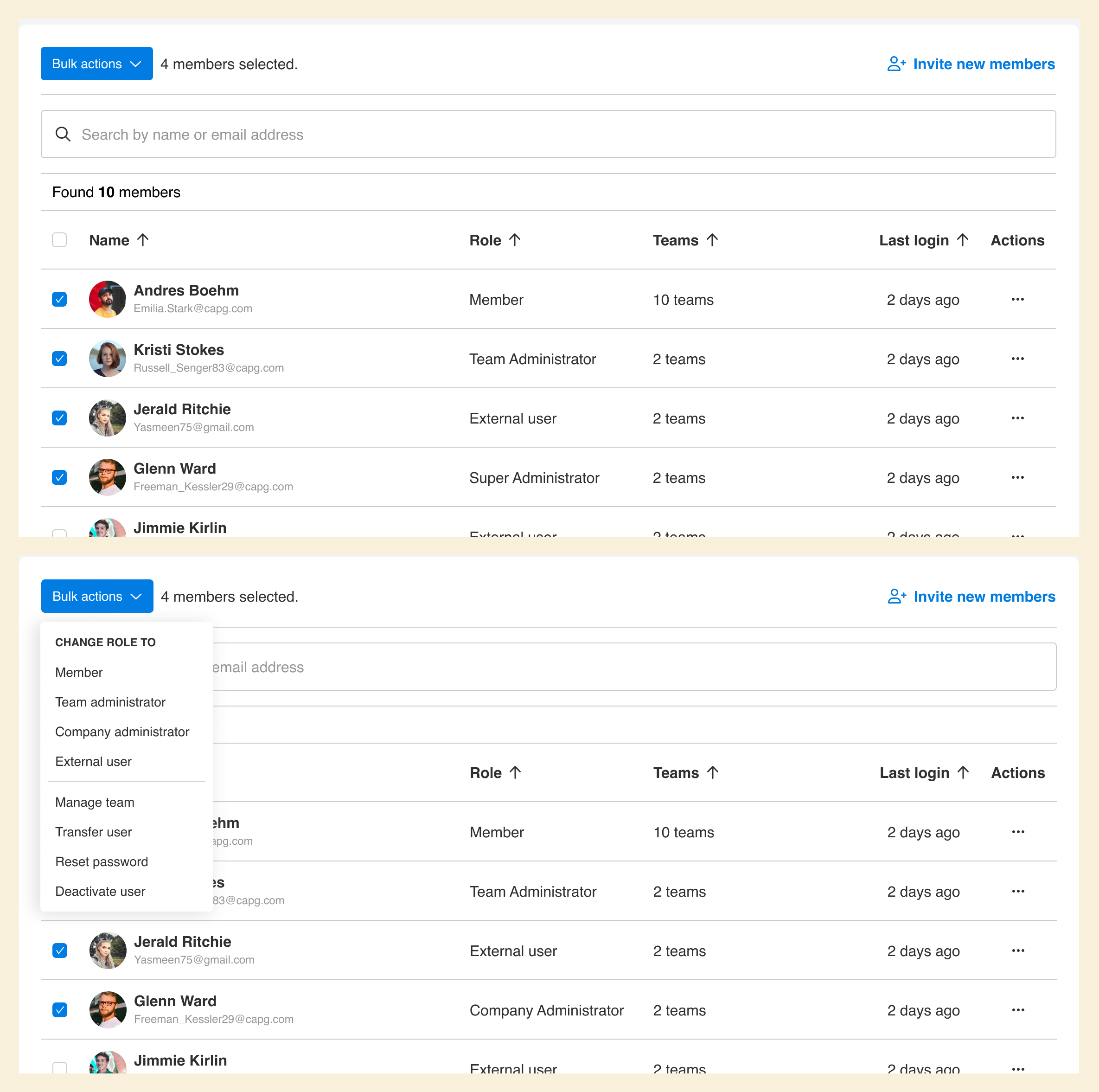
- Ability to mass apply actions across multiple users: Administrators can now select multiple team members at the same time. On selection, the table title is replaced with a button allowing them to apply a bulk action e.g. updating the teams they belong to, changing their role type, etc. This change will save administrators time and reduce errors when updating.
-
Improved the sidebar’s information hierarchy and architecture: In the old sidebar, the dropdown that allowed users to switch between companies was easy to miss. It was not prominent enough and was placed in a less noticeable location. In the new sidebar, I placed the dropdown at the top of the page. This made it more prominent and easier to find. I also included a company logo beside the company name. This further emphasized the importance of this section.
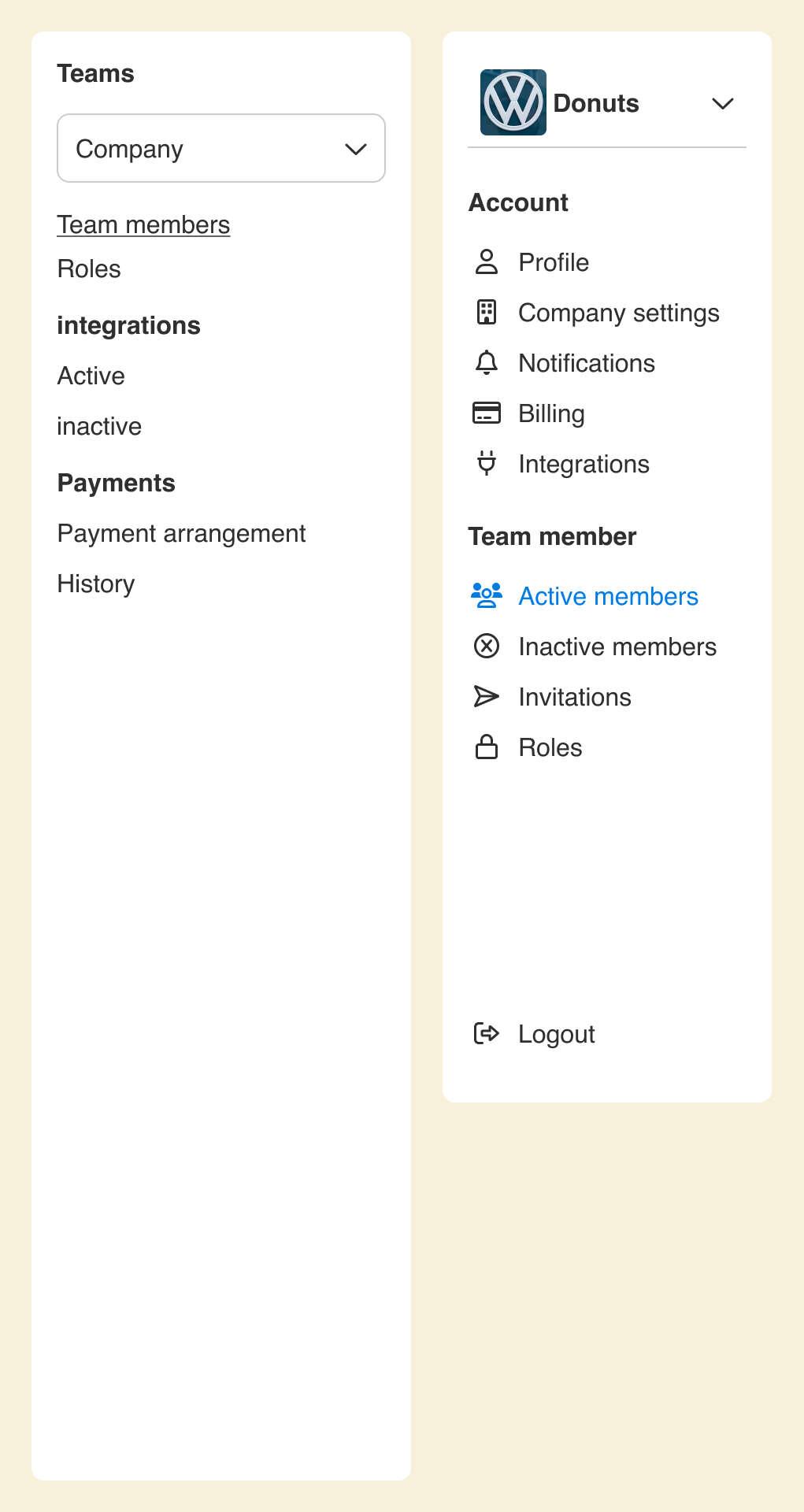
Old sidebar (left) vs new sidebar (right) -
Provided access to filters, recent and saved searches from the searchbar: Users can access the filters by clicking on the search bar, along with the recent and saved searches. When the filters are applied, the search results are refreshed, and a list of active filters is shown. Administrators can also choose to save the search for future use.
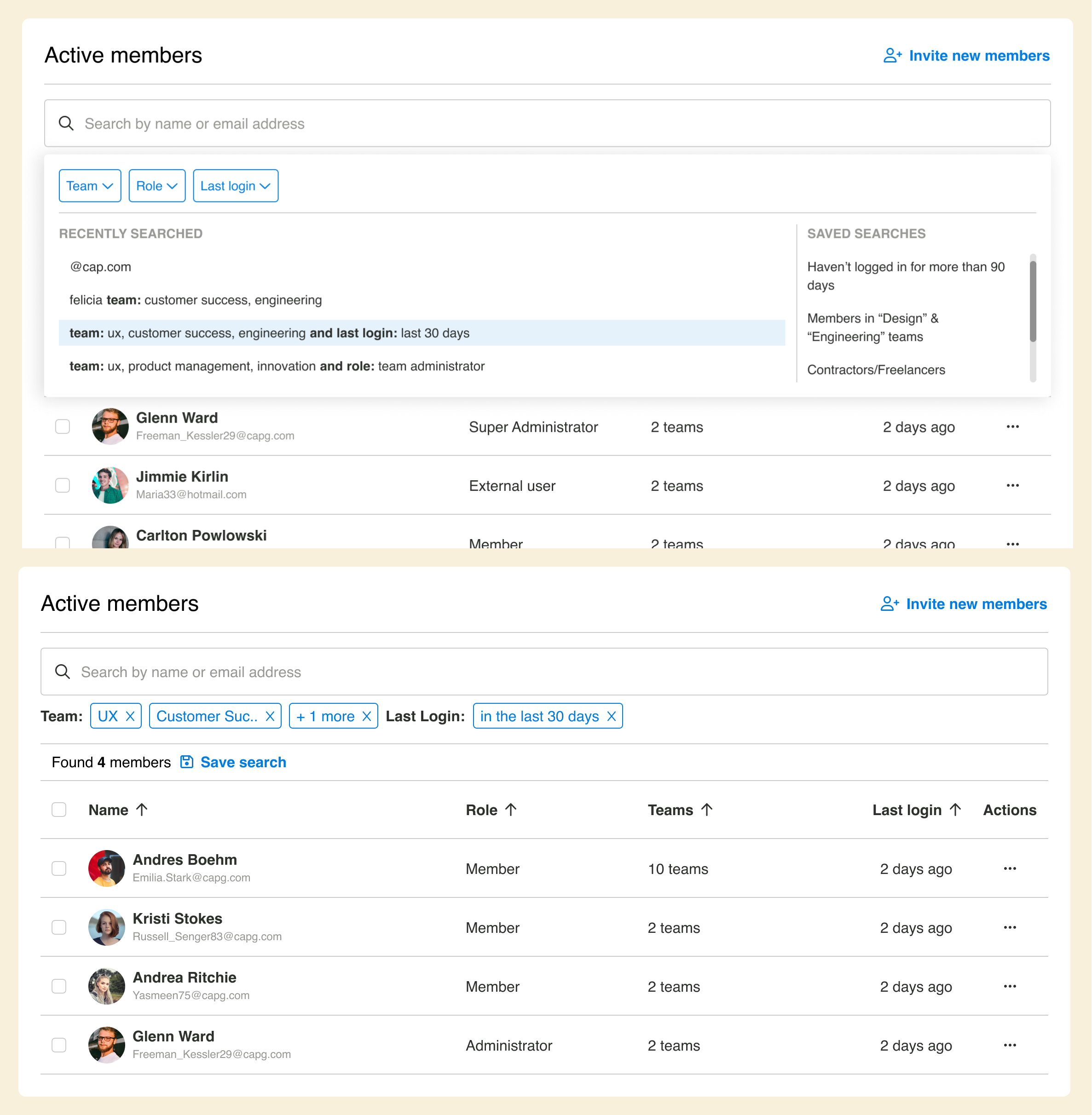
Users can now save their searches or view recent searches, and reuse them later. This saves time and effort.
- Provide helpful error actions that drive action. The original error message, “No results found,” was not helpful or actionable. It did not provide any information about why there were no results, or what the user could do to try to find results. I updated the error message to be more helpful and actionable. The new error message explains why there’re no results, and what users can do next to correct it.
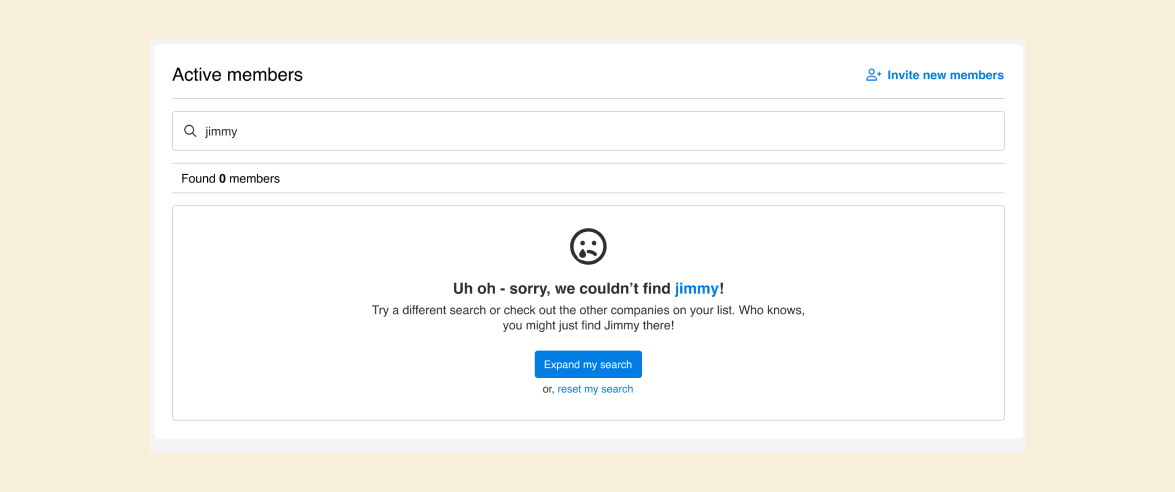
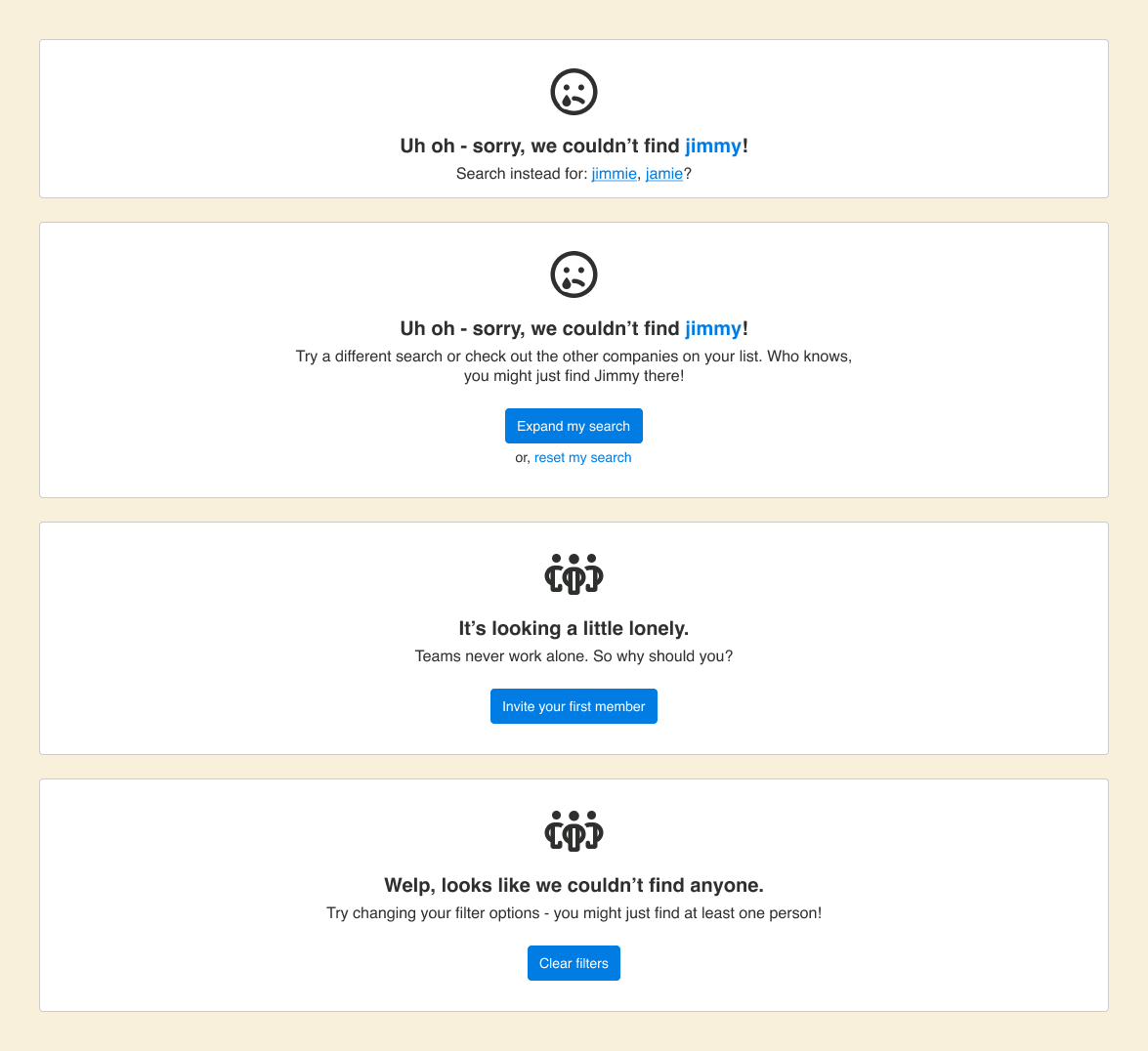
4 different error types, going from top to bottom: (1) shown when there’s a close match in the company (2) shown when no exact or close match, but possible match in other companies (3) show when no users invited yet and (4) shown when filtered results return nothing.
Outcome
The new design was implemented and rolled out to a small group of beta testers. The early feedback from beta testers was positive. They reported that the new design made it easier and faster for them to manage team members.